
|
|
|

|
|
|
|
|

|
|
|

|
|
|

|

|
|
|
|
|
| Windows XP: Service Pack 2 We presume that the wireless network card is not configured for any network and therefore has no current connection.
Make sure you have installed the HiMolde CA certificate before you continue.
You need to install an update form Microsoft to get WPA2 support. More information about the update is here: http://support.microsoft.com/?id=893357 To download the English version follow the link below:
http://www.microsoft.com/downloads/details.aspx?displaylang=en&FamilyID=662BB74D-E7C1-48D6-95EE-1459234F4483 To download the Norwegian version use this link:
Follow the instructions provided on the website from Microsoft. After successfully installing the update and rebooting your computer continue configuration of eduroam following the steps beneath:
Right click on the tray icon for the wireless card and select Open Network Connections. This can also be done by right clicking on My Network Places icon or by choosing Network Connections from the Control Panel.
Locate the icon for the wireless card. 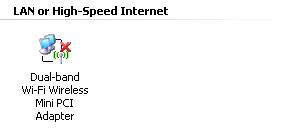
Right click on this icon and select Properties 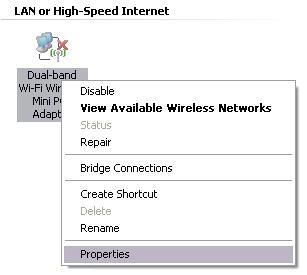
In this dialog box, choose Wireless Networks 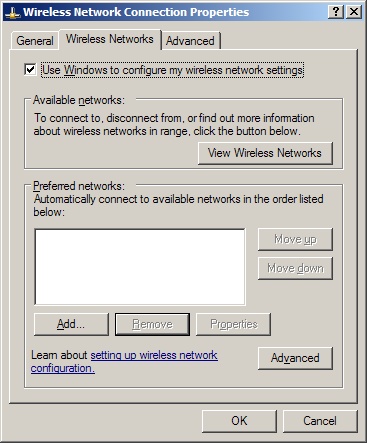
Check the box marked Use Windows to configure my wireless network settings Press Add to add a new wireless profile. 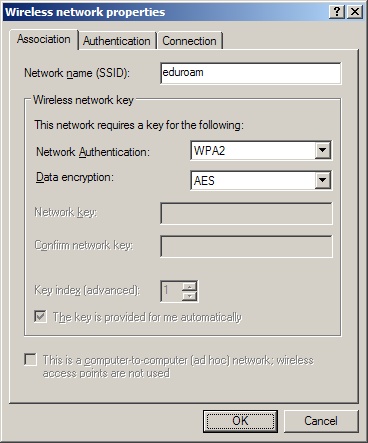
Insert the Network name (SSID) 'eduroam' Network Authentication is 'WPA2' and Data encryption is 'AES' Select the tab Authentication 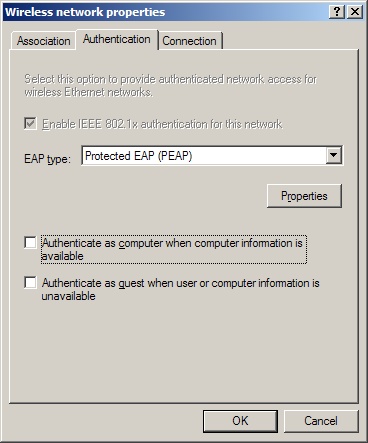
EAP type should be 'Protected EAP (PEAP)' Select Properties 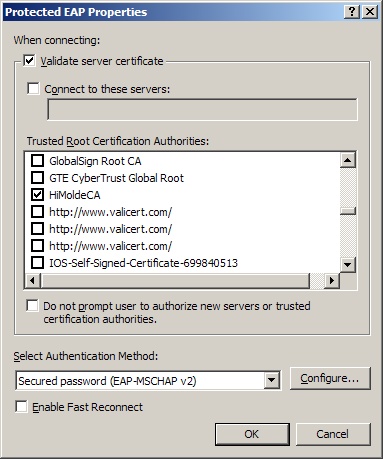
Select Validate server certificate and in the list of Trusted Root Certification Authorities select HiMoldeCA. In the Select Authentication Method choose 'Secured password (EAP-MSCHAP v2)'. Uncheck Enable Fast Reconnect Press Configure... to configure MS-CHAPv2. 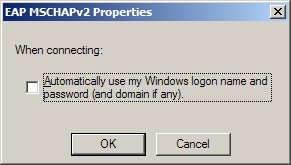
Remove the Automatically use my Windows logon name and password (and domain if any) if your eduroam username and password differs from what you use as Windows logon. Press OK to return to the main dialog window.
The main dialog window for wireless networks should look like this when finished with the profile
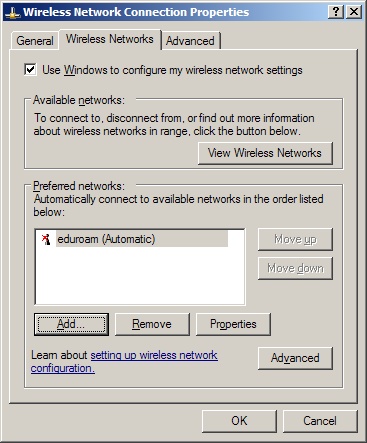
Press OK to finish the configuration Back in the Windows workbench, the wireless card should now search for available wireless networks. When 'eduroam' is found, a yellow bubble will appear. 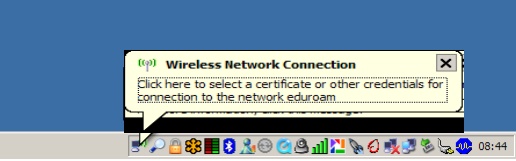
Click on this bubble to get a dialog window to enter the users' credentials. 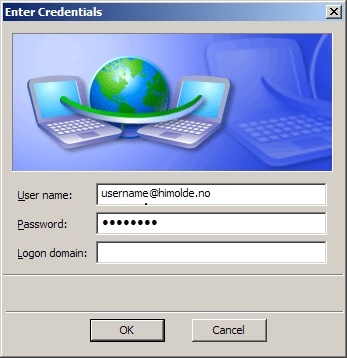
Enter your full identity/username ('brukernavn@himolde.no') and password. Let the Logon domain remain blank. 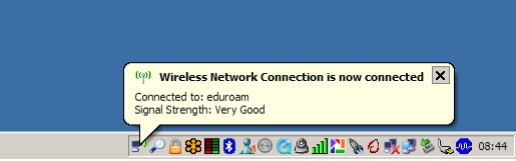
If everything went well you should get a message that you are attached to 'eduroam'. 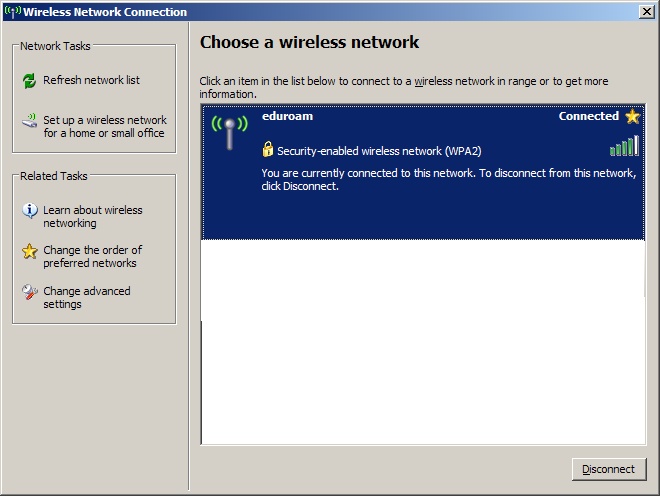
In the list of available wireless networks you can see more details about your connection and given the option to disconnect. |

 hurtigmeny