| Printer friendly format for http://doc.uib.no/wiki/InformatikkOvergangITavd
: |
Display
with
child pages or
without header
|
Click here to print this page.
Se Techblog-innslaget for overflyttingen her.
:: How to set up your mail account with IT-Department mail server
Account summary / Account settings
IMAP-server: imap.uib.no
or imap.student.uib.no if you have a student account
SMTP-server: smtp.uib.no
Username: Your username - should be given out by IT Department
|
See below for settings with Thunderbird/Mozilla, Evolution and Webmail.
Thunderbird or Mozilla Mail settings
- First, start Mozilla Mail (or Thunderbird) on your computer, do this by going to Start -> Programs -> Mozilla (or Thunderbird).
- To get to the Mozilla Mail application: From the Window menu, select Mail & Newsgroups. (This step is not for Thunderbird).
- Select Edit menu, then select Mail & Newsgroups (in Thunderbird this is called "Account settings"). You will now see the following screen:

Account settings
- Next step, click on Server Settings in the left menu. You will see the following screen:
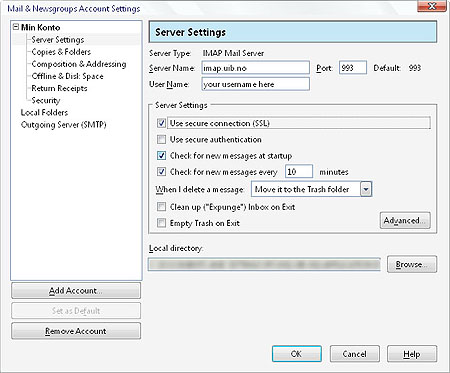
Server settings
- Please enter imap.uib.no as Server Name.
- Please enter your IT-department username instead of the Informatics username at User Name.
- The field labeled Port should be pointed to 993 and the make sure Use secure connection (SSL) is checked and Use secure authentication is checked.
- Next click Advanced Account settings
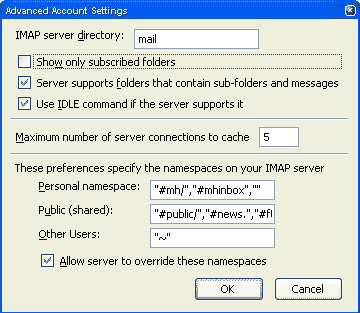
IMAP server directory: mail
-
Set IMAP server directory to mail
-
Uncheck "Show only subscribed folders"
-
Set Maximum number of server connections to cache to 3.
Next step:
- Now click Outgoing Server (SMTP) in the left menu.
- You will see the following screen:

Outgoing server settings
- Set the Server Name to smtp.uib.no
- Please verify that the box marked User name and password is checked.
- Set User name to your IT-department login name
- Set Use secure connection, please verify that the radio button marked Yes is selected for this option.
- Now restart Mozilla and you will be asked for the password for the
new username. Please check that Mozilla remembers the password when it
asks you for it.
- Finished.
Evolution Settings
- Start Evolution
- Select: Tools -> Settings...
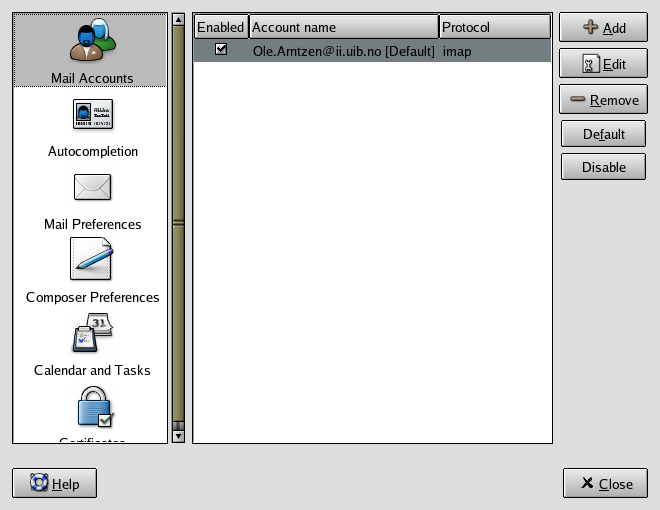
- Select your mail account, and click on Edit
- Click on: Receiving Mail
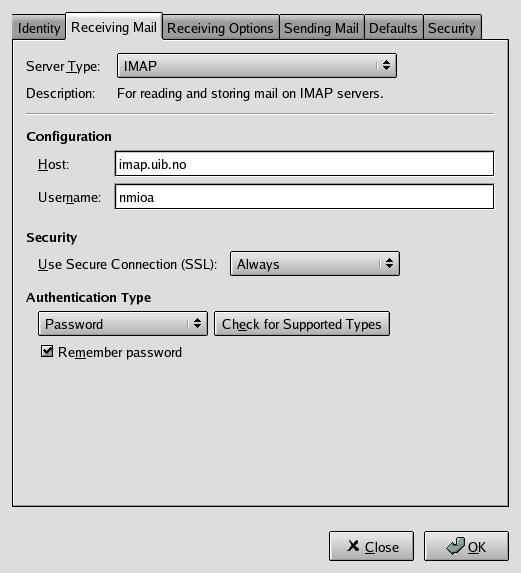
- Set Host: imap.uib.no (or rasmus.uib.no if you have a student account)
- Set Username: your username at the IT department
- Then click on: Sending Mail
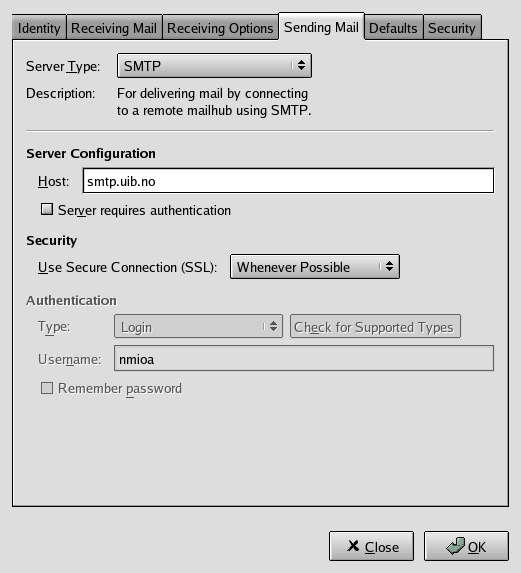
- Select Server Type: SMTP
- Set Host: smtp.uib.no
- Finnished!
Webmail
URL: http://webmail.uib.no
Username: Your username at the IT department
Server: ALF (Ansatte) or RASMUS (Studenter)