
TortoiseCVS
The Program
TortoiseCVS is free and can be downloaded here. It's also installed on all general computer labs.
To install the client on you own machine you need to download the install file from the link above. When you've installed the program you'll see that some new choices has been added in the popup menu you get when you right click on a folder or file in windows explorer.
Before you begin
Before you start to use the program you should change some settings:
- Press Start - TortoiseCVS - Preferences. You will get a dialog box looking something like this:

- In the tab Main Progress dialog should be set to Close if no errors.
- In Policy select Automatic commit: Automatically commit file after add and Allow Network Drives: Permit sandboxes and repositories on network (remote) drives (both these are marked with "NOT recommended", but ignore that.
- If you've installed WinMerge on your pc you can add this in the tab Tools in the alternatives for External diff application and External merge application.
- For the changes to be stored you need to press OK and then log on/off your user or restart your machine.
Getting ready to use CVS
When you want to start to use version control on a file or a folder you first need to decide if you want to have the repository (file storage) locally on your PC, or on another machine (e.g. your home directory on stud). After you've set up the repository the usage of the tortoiseCVS program will be the same.
In the article the word "project" is used. A projects can in this context either be a single file or a folder with one or many files
Using version control on a project with a local repository
The first thing that needs to be done when you want to use CVS is to create a CVS-root. In this everything you add to the CVS will be stored. The first this you should do is to make this folder. In the example below I've named this folder D:\testcvs\cvsroot.
Then you need to locate the folder you want the add to the CVS. This folder we've called content.
If you now right click on the folder content and choose CVS - Make New Module..., you will get a dialog box. If you've used TortoiseCVS earlier and already used some CVSROOTs, these will be listed in the top field in the dialog box.
- SetProtocol to be Locally mounted folder (:local:)
- Type in local:D:\testcvs\cvsroot in the field CVSROOT
- Choose a name for the module (in the example we've named the module "content"
- If you want to add a comment, you can do that in the bottom field
- Press OK
- If there isn't a CVS repository already in the folder you've selected to be CVSROOT, you'll get a question if you want to create a new repository in the marked folder. Select it and press OK.
If you've not changed any of the symbols for the different states of file/folder, the folder content now should get a greenish icon(which means the folder has been added to a CVS)

Creating version control of a project with a central repository
If you want to use a central repository you need to have already created a repository in the folder you want to use (make a local repository so you can create CVSROOT folder with the accompanying files.) When you've done that do the following to add a folder to the repository:
- Right click on the folder (in this example it's named sentral), choose CVS - Make New Module...
- SetProtocol to Secure shell (:ext:)
- Set Server to the server you want to use, e.g. login.stud.ntnu.no
- Add the path to the repository, e.g: /home/homet/da/daljord/testcvs2/cvs2
- Type in your username in the field User name
- Choose a name for the module (in the example it's called "sentral")
- If you want to add a comment you can do that in the bottom field
- Press OK
- Now you'll get a dialog box where you'll be asked to type in your password. This dialog may appear more than once. Type in your password and press OK.
- A verification popup should appear.

Adding password keys
It will be practical to add a password key so you don't have to type inn your password every time you want to do a task. Instructions:
- Start Windows Explorer and go to the folder where you installed TortoiseCVS (typically C:\Program Files\TortoiseCVS).
- Start puttygen.exe
- The following dialog should appear:

- Choose SSH2 DSA.
- Press the button Generate.
- Type inn a pass phrase. This pass phrase you'll use instead of a password (and only the first time you log in in each session). The pass phrase should be longer than a usual password and not easy to guess.
- Choose Save public key. Save the key with the name id_dsa.pub (in the folder with TortoiseCVS)
- Copy the content below the text:Public key for pasting into OpenSSH authorized_keys2 file:. This text you should paste in a file on your home directory on stud. If you've not made any SSH-keys earlier, you should save the text in a file you call authorized_keys2, and save the file in the directory .ssh, which is in the root of your home directory. If you've earlier made SSK-keys you need to paste the new text into the end of the file authorized_keys2
- Choose Save private key. Save the key with the name id_dsa.ppk
- Download pageant.exe from the PuTTY-page. Save it in the TortoiseCVS-folder.
- Run pageant.exe from your TortoiseCVS-folder. You will now get a small icon in your systray (lower right corner of your screen).
- Right click on the icon and chooseAdd key. Find the file you named id_dsa.ppk (the private key) and choose Open. Now you'll get a question if you want type in your pass phrase. If you now choose View keys, on the right click menu of the icon, you'll see that the key has been added.
- Then everything should be alright and you don't need to type in your password when you're changing content in the project. Next time you want to use your SSH-keys, you need to repeat the last two steps.
Checking out a project
If you already have a repository somewhere and wish to check out a local copy. If there are more than one person cooperating on a project it is wise that all members of the project checks out a local copy and commit the files you edit.
- Right click on the directory you want to put the project in. Choose CVS checkout.
- Type in where you can find the repository (the same way as when you create a project).
- Press OK.
- A confirmation popup should appear...
Working with the project
When you've made some changes to a file you have in CVS you'll see on the icon by the file in explorer has changed to red from green. That means the file differs from the file in the repository.
Diff
If you've added a program to see differences between versions of files (like WinMerge) You can now right click on the file and select CVS diff... to see the changes that have been made.
Committing
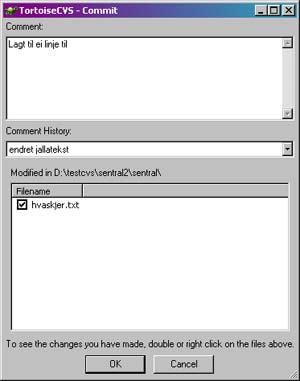
To commit a file(adding a new version in the repository) right click on the file and choose CVS commit. The file will then get a new version number in the repository. If you made changes to more than one file in a directory you can commit the entire directory the same way you commit single files.
Update
If there is a new version in the repository and you wish to update the file, right click on the file and select CVS update. Directorys can be updated the same way.
Adding a file
If you've created a new file or folder in a directory that is already in CVS you'll get a question mark as an icon. This means that that file is not in the repository yet. If you want to add the file to the repository, right click on it and choose CVS add.... Click OK and add a comment if you like.
Remove a file
If you want to remove a file from the repository you can do this by right clicking and choosing CVS - Remove.
Other options
If you right click on a file you'll have some more available CVS tools. The most useful are:

History...
Shows the file's history, including version number.
Revision graph...

This tool gives you a graphical display of the file's history. The graph shows branches as hexagons with the branch's name in the middle.
If you right click on one of the versions you'll get the option to fetch the selected version from the repository.
Other resources
The user manual that is included with the program (find it as Start - TortoiseCVS - User guide has more information. There is also some info on the official homepage.
| Languages: | Comments: | 0 | Aid: | 359 | User rating: |
|
|
| Last updated: | 2007-06-20 | Author: | thomasan | Read: | 3820 times |